Symbols
A Symbol is a reusable element that stays synchronized across every page where it appears. When you update one instance, every other instance updates too. This is how you build a site header or footer once and have it appear — and stay consistent — on every page.
Two things to understand before diving in:
- A Symbol is a template, and its copies are instances. Edit any instance and all of them reflect the change. This is fundamentally different from copy-paste, which creates independent duplicates.
- Symbols work across pages. A header Symbol placed on every page of your site will look and behave identically on each one. Change the logo in the header on any page, and it changes everywhere.
Why you need Symbols
Without Symbols, keeping a navigation bar consistent across 20 pages means editing 20 separate copies every time you add a link or change a color. Miss one and your site has inconsistencies.
Symbols solve this by treating all instances as mirrors of the same element. The header is defined once. Every page gets an instance that reflects the current state of that definition.
Creating a Symbol
- Build the element you want to reuse — a header, footer, call-to-action block, or anything else
- Select it on the canvas
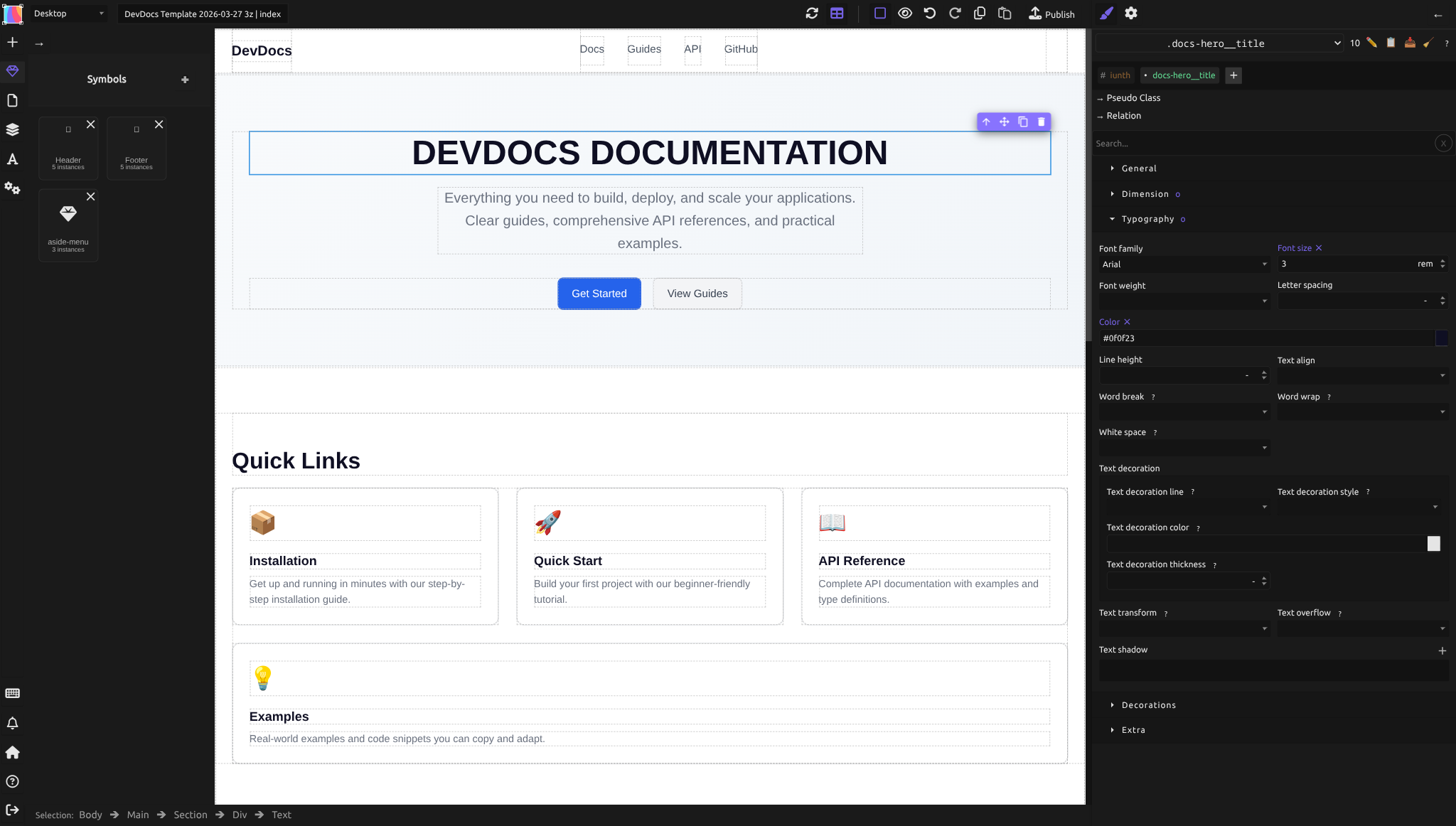
- Open the Symbols panel in the left sidebar (the gem icon)
- Click the + button at the top of the Symbols panel
- Enter a name for the Symbol (e.g., "Site Header")
- The element is now a Symbol — you will see it listed in the Symbols panel
The element on the canvas becomes the first instance of that Symbol. It is visually highlighted to indicate it is part of a Symbol.
Placing instances on other pages
Once a Symbol exists, you can add instances to any page:
- Navigate to the target page using the Pages panel
- Open the Symbols panel
- Drag the Symbol from the panel onto the canvas
- Position it where you want it
The new instance is linked to the Symbol definition. Any changes to the Symbol — structure, content, or child elements — will be reflected in this instance and all others.
Editing a Symbol
Select any instance of a Symbol on any page and make your changes. Every other instance updates automatically. You can:
- Add or remove child elements inside the Symbol
- Change text content
- Rearrange the internal structure
- Modify the element's name or attributes
The synchronization happens immediately in the editor. You will see other instances update when you switch pages.
Styling Symbols with classes
Style your Symbols using classes in the Style panel, following the BEM convention. For example, a header Symbol might use:
.site-header— the outer container.site-header__logo— the logo image.site-header__nav— the navigation wrapper.site-header__link— individual navigation links
Because styles are tied to classes rather than individual elements, all instances share the same visual appearance through CSS. When you change a class's styles, every element using that class updates — both inside and outside of Symbols.
Do not use inline styles on Symbol instances. Inline styles cannot be shared or managed centrally. Always assign a class and style through the Style panel.
Shared header and footer across pages
The most common use case for Symbols is a site-wide header and footer. Here is the recommended workflow:
Header:
1. On your first page, build the complete header — logo, navigation links, any other elements
2. Turn it into a Symbol named "Site Header"
3. On every other page, drag the "Site Header" Symbol from the Symbols panel to the top of the page
4. Use internal links for navigation — remember that internal links must be relative and start with ./
Footer: 1. Build the footer on any page — copyright text, secondary links, social icons 2. Turn it into a Symbol named "Site Footer" 3. Drag it to the bottom of every page
Now when you need to add a new page to the navigation, edit the header on any page. The link appears on every page instantly.
Unlinking an instance
Sometimes you want to start from a Symbol but make one instance independent — for example, a slightly different call-to-action on one page.
To unlink an instance from its Symbol:
- Select the instance on the canvas
- Open the Element settings (gear icon at the top of the right panel)
- In the box that shows the name of the Symbol, click Unlink
The instance becomes a regular element. It keeps its current content and structure but no longer receives updates from the Symbol. Other instances are unaffected.
Deleting a Symbol
To remove a Symbol entirely:
- Open the Symbols panel
- Click the × at the top right of the Symbol's thumbnail
- Click Delete to confirm
Deleting a Symbol removes the Symbol definition. Existing instances on pages remain as regular elements but are no longer linked.
Current limitations
Symbols are powerful but have some boundaries you should know about:
- No nesting. You cannot place one Symbol inside another Symbol. If you drag a Symbol into an instance of a Symbol (the same one or another), nothing happens and no message appears. Design your Symbols as self-contained units.
- Style synchronization edge cases. In some situations, styles applied to elements inside a Symbol may not sync perfectly across all instances. If you notice a style inconsistency, check that you are using class-based styles (not inline) and that the class name is the same across instances.
- Per-instance overrides are not yet available. Currently, all instances mirror the Symbol exactly. The ability to override specific properties (like text content or image source) on a per-instance basis is planned but not yet implemented.
- No Symbol inside a Symbol. This bears repeating because it is the most commonly hit limitation. If you need something that appears inside multiple Symbols (like a logo), build it as a regular element and style it with a shared class instead.
Want to see these features? Vote on the roadmap or propose new ideas.
Common mistakes
- Forgetting which page you are on. Editing a Symbol instance on Page 3 affects the Symbol everywhere. This is the whole point, but it can surprise you if you meant to change something only on that page. If you need a one-off change, unlink the instance first.
- Using inline styles on Symbol elements. Inline styles do not sync reliably across instances. Always use classes.
- Building too many small Symbols. A Symbol adds overhead. Use them for parts of the site that truly repeat across pages (headers, footers, call-to-action blocks), not for every small element.
- Trying to nest Symbols. This is not supported. Restructure your design so that Symbols are top-level containers, not nested building blocks.
Learn more
Full walkthrough — narrated, in English:
- Design system — building reusable classes and CSS Variables alongside Symbols
- Flexbox — layout techniques for Symbol internals
- Breakpoints — making Symbols responsive across devices
- Adding content — building the elements that become Symbols
- Pages and structure — managing the pages where Symbols are placed
Advanced: how Symbols work internally
Symbol data model
When you create a Symbol, Silex registers it through GrapesJS's built-in symbol system (editor.Components.addSymbol()). The Symbol is stored as a component definition, and each instance is a reference to that definition. GrapesJS tracks the relationship and propagates changes.
ID handling
Each instance gets unique element IDs. When a Symbol instance is created (by drag-and-drop, duplication, or API), the Symbols plugin automatically updates internal ID references to match the new unique IDs generated by GrapesJS. This prevents ID collisions when the same Symbol appears multiple times on a page.
The Symbols panel
The Symbols panel (@silexlabs/grapesjs-symbols) renders the list of available Symbols with their names and icons. It listens for Symbol creation and deletion events to stay in sync. The panel is configured to appear in the left sidebar alongside Blocks, Pages, and Layers.
Detaching and deleting
- Detaching (
editor.Components.detachSymbol()) breaks the link between an instance and its Symbol. The instance becomes a standalone component. - Deleting a Symbol removes the definition. Instances remain on their pages but lose their Symbol connection.
The nesting restriction
The allowDrop function checks whether a drop target or any of its parent components is a Symbol instance. If it is, the drop is blocked. This prevents circular references and keeps the synchronization logic simple and reliable.
Quiz
Q1: You edit a navigation link inside a header Symbol on Page 5. What happens on Pages 1 through 4?
- A) Nothing — edits only apply to the page you are on
- B) The navigation link updates on all pages that have an instance of that Symbol
- C) The link updates only if you save and reload
Answer
B) The navigation link updates on all pages that have an instance of that Symbol — That is the core behavior of Symbols. All instances reflect every change immediately.
Q2: You want a call-to-action block that appears on most pages but has different text on the homepage. How do you handle this?
- A) Create the Symbol, place it on all pages, then unlink the homepage instance and edit it independently
- B) Do not use a Symbol — copy-paste the block to each page
- C) Create two separate Symbols, one for the homepage and one for other pages
Answer
A) Create the Symbol, place it on all pages, then unlink the homepage instance and edit it independently — You get the consistency benefit on most pages and the flexibility of an independent element on the homepage.
Q3: You try to drag a "Social Icons" Symbol into your "Site Footer" Symbol and the editor blocks you. Why?
- A) The footer already has too many elements
- B) Symbols cannot be nested inside other Symbols
- C) You need to unlink the footer first
Answer
B) Symbols cannot be nested inside other Symbols — This is a current limitation. Build the social icons as regular elements inside the footer Symbol, styled with a shared class.
Q4: After deleting a Symbol from the Symbols panel, what happens to the instances on your pages?
- A) They are deleted from all pages
- B) They remain as regular elements but are no longer linked to a Symbol
- C) They become invisible
Answer
B) They remain as regular elements but are no longer linked to a Symbol — Deleting the Symbol definition removes the synchronization, but existing instances keep their content and structure.
Q5: You notice that one instance of a Symbol has different padding than the others. What is the most likely cause?
- A) The instance was unllinked at some point
- B) Inline styles were applied to that instance instead of a class
- C) Either A or B — check whether the instance is still linked and whether inline styles are present
Answer
C) Either A or B — An unlinked instance no longer receives updates, and inline styles override class-based styles. Check both possibilities.